 Chrome guide

Daniel Okonkwo writes about phones and mobile apps for Appcyclopedia, working on a MacBook Pro, a Pixel 9 Pro and an iPhone 15.
- Windows
- macOS
- Android
- iOS
Short answer
On a computer, open the page and click the star at the right of the address bar, or press Ctrl+D on Windows or Cmd+D on a Mac, then click Done. On a phone, tap the three-dot More menu and then Add to bookmarks.
To see them on every device: bookmarks only follow you to your phone or another computer when you are signed in to Chrome with the same Google Account.
Below: the steps on each device, the bookmarks bar, folders, and where to find a bookmark you saved.
Save a page in Chrome, then find it again
To bookmark a page in Chrome, use the star on a computer or the More menu on a phone. The later steps cover the bookmarks bar and folders, which keep a growing list usable.
-
Bookmark the page
On a computer, click the star or press Ctrl+D
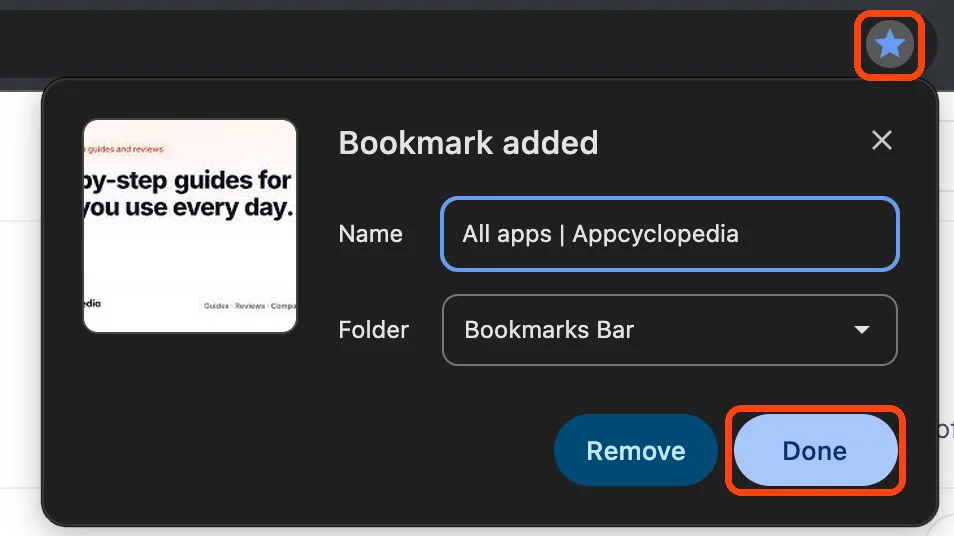
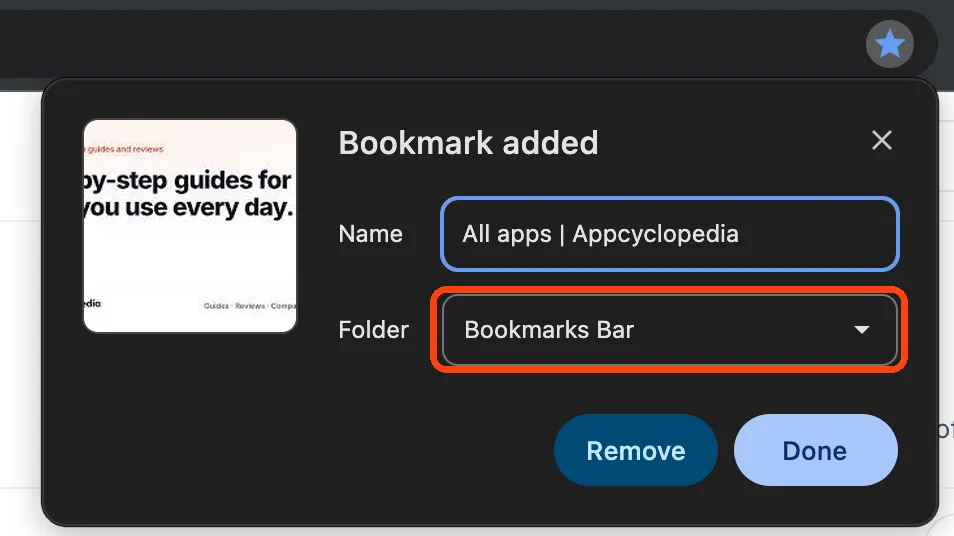
Open the page you want to keep. Click the star icon at the right end of the address bar, or press Ctrl+D on Windows and Linux or Cmd+D on a Mac. A small box opens with the page name and a folder choice. Click Done.
-
On a phone, tap More and then Add to bookmarks
Open the page in Chrome on your Android phone or iPhone. Tap the three-dot More menu, then Add to bookmarks. Chrome saves it and shows a short note at the bottom with an option to edit it.
-
Keep bookmarks within reach
Show the bookmarks bar on a computer
Press Ctrl+Shift+B on Windows or Cmd+Shift+B on a Mac, or open the More menu, then Bookmarks and lists, then Show bookmarks bar. The bar appears under the address bar, and bookmarks saved to it open in one click.
-
Choose a folder when you save
In the box that opens after you click the star, use the Folder list to pick the bookmarks bar or another folder. To make a new folder, open Bookmark manager from Bookmarks and lists and choose Add new folder from its menu.
-
Open a bookmark on your phone
Tap More, then Bookmarks. Open the folder that holds it and tap the bookmark. The search bar at the top finds a bookmark by name without opening every folder.
A tidy set-up for a new computer: the five sites you open every day on the bookmarks bar, a Recipes folder and a Bills folder for the rest, and sync turned on so the same bookmarks appear on your phone.
Bookmark into a folder from the start; sorting fifty loose bookmarks later is the job nobody gets round to.

More about Chrome
Google’s free web browser, built on the open-source Chromium project.
Bookmark missing? Where to look
- Bookmarks saved on the computer are not on your phone
You need to be signed in to Chrome with the same Google Account on both, with sync turned on. Sign in from Chrome’s settings on each device.
- The bookmarks bar disappeared
It was hidden. Press Ctrl+Shift+B on Windows or Cmd+Shift+B on a Mac to bring it back.
- You cannot remember which folder a bookmark went in
Open Bookmark manager and type part of the name in the search box at the top. It searches every folder at once.
- The star is filled in and nothing happens
A filled-in star means the page is already bookmarked. Click it to edit the name or folder, or to remove the bookmark.
Bookmarks bar, folders or Reading list?
Chrome offers a few places to keep a page. They suit different kinds of page.
| Place | Best for | Where you see it |
|---|---|---|
| Bookmarks bar | The handful of sites you open every day | Under the address bar on a computer |
| A bookmarks folder | Pages you want to keep, grouped by subject | Bookmarks menu and Bookmark manager |
| Reading list | Articles you mean to read once | Side panel on a computer, More menu on a phone |
The bookmarks bar only shows as many sites as fit across the window, and the rest hide behind an arrow at its end. Everything beyond the daily few belongs in a folder.
Keep the bar for daily sites and give everything else a folder.
How bookmarks reach your phone
Bookmarks are saved in Chrome on the device where you made them. Signing in to Chrome with your Google Account copies them to the account, and every Chrome where you sign in with the same account shows the same list.
That works between any mix of Windows, Mac, Android and iPhone. On a phone, bookmarks made on the computer appear in a folder of their own rather than mixed in with the ones you made on the phone.
Finding a bookmark you saved weeks ago
Bookmark manager is quicker than scrolling. Open the More menu, then Bookmarks and lists, then Bookmark manager, and type part of the page name or the site into the search box. It searches every folder, including ones synced from your phone.
Your bookmarks are set up
Saving a page is one click. What makes bookmarks useful months later is a short bar, a few folders, and sync turned on.
Click the star, pick a folder, and sign in to Chrome so the same list is on your phone.
If links from email and other apps still open in another browser, make Chrome your default browser.
Chrome bookmark questions
- Where are my Chrome bookmarks stored?
- In Chrome on that device, and in your Google Account when you are signed in with sync on. That is what lets them appear on your other devices.
- Can I rename a bookmark?
- Yes. Click the filled-in star while on the page, or open Bookmark manager, select the More icon next to the bookmark and choose Edit.
- How do I sort my bookmarks?
- In Bookmark manager you can sort them by name, by newest or oldest, or by when you last opened them, and drag them between folders.
- Do bookmarks work in Incognito mode?
- You can open your saved bookmarks in an Incognito window. A page you bookmark while in Incognito is still saved to your bookmarks.
Share this guide
Link copied
Was this guide helpful?
What was missing?
Thanks, that helps us.
Test log
Followed the steps? Tell us how it went on your device. Entries appear here after we check them.
- Worked Every step, start to finish · Elias Brandt and Marta Kowalczyk Team
I tested this
Steps performed and confirmed 14 days ago
When you need this
If you want to save a page and find it again later without searching for it, bookmark it in Chrome. With sync on, the same bookmarks appear on your phone as well.
- Describes
- Chrome on Windows and Mac · Chrome for Android · Chrome for iPhone and iPad
- Takes
- A few seconds per bookmark
- Platforms
- Windows · macOS · Android · iOS
- Published
- 7 October 2026
- Facts checked
- 7 October 2026
Steps repeated and verified by  Elias Brandt and
  Marta Kowalczyk
on
Marta Kowalczyk
on
- Elias Brandt: the Windows steps on a ThinkPad X1 Carbon (Windows 11 Pro).
- Marta Kowalczyk: the Mac steps on a MacBook Air (macOS 27.0.1), the iPhone steps on an iPhone 16 Pro (iOS 27.0.1) and the Android steps on a Galaxy A55 (Android 16).
 Chrome