 Google Maps guide

Daniel Okonkwo writes about phones and mobile apps for Appcyclopedia, working on a MacBook Pro, a Pixel 9 Pro and an iPhone 15.
- Web
- iOS
- Android
Short answer
Search for the place or tap it on the map, open its details and tap Save. Choose a list, or create a new one. Your saved places sync to every device signed in to the same Google Account.
Where to find them later: on a phone, open the You tab. On a computer, click Saved at the top left of Google Maps.
Below: the steps on a phone and a computer, making your own lists, and who can see what you save.
How to save places on Google Maps, on your phone or computer
To save a place on Google Maps, open the place first, then use its Save button. The first group covers the phone app, the second a computer, and the last step covers making your own list.
-
On a phone
Find the place and open its details
Open Google Maps on your Android phone or iPhone. Search for the place by name or address, or tap it on the map. Tap the name or address at the bottom of the screen to open the full details.
-
Tap Save and choose a list
Tap Save among the buttons under the place’s name. A list of your lists appears. Tick the one you want, or several, and tap Done. The place now shows on the map with that list’s icon.
-
Open the You tab to find saved places
Tap You at the bottom of the screen to see every list and the places in it. Tap a list to show its places on the map, then any place for directions.
-
On a computer
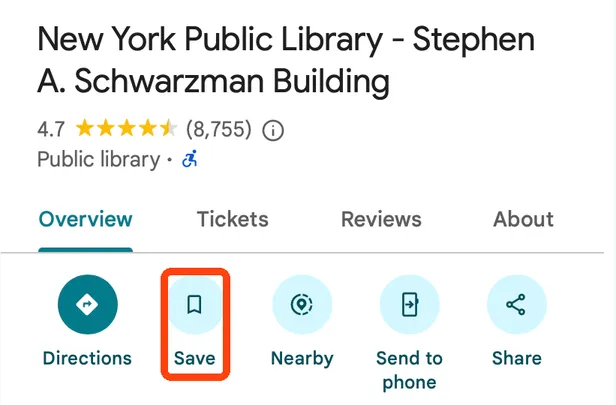
Open the place and click Save
Go to maps.google.com and sign in. Search for the place or click it on the map, then click Save in the panel that opens on the left and choose a list.
-
Click Saved to see your lists
Click Saved at the top left of Google Maps. Every list opens from there, the same lists you see in the phone app.
-
Make a list of your own
Create a new list and choose who can see it
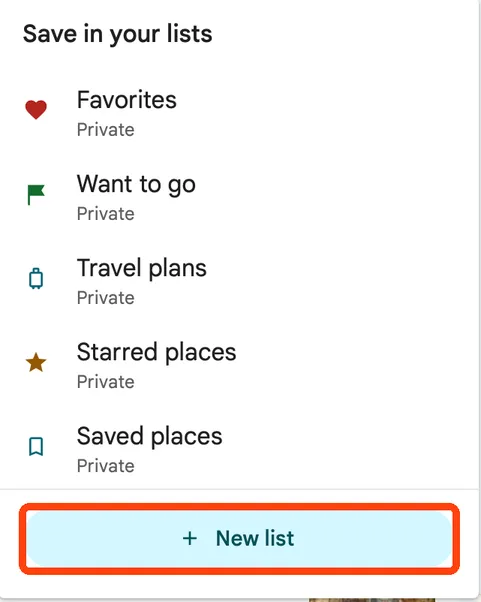
On a phone, open the You tab and tap New list, or tap New list while saving a place. Give it a name and an optional description. Choose Private to keep it to yourself or Shared to let people with the link view it, then tap Save at the top right.
Planning a weekend in Lisbon: create a list called “Lisbon”, save the hotel, three restaurants and a museum to it on your computer, then open the You tab on your phone when you arrive. All five places are on the map, ready for directions.
Save to a named list rather than a general one: a list per trip or topic is far easier to open on the day than a long list of everything.

More about Google Maps
Google’s free maps for directions, traffic, public transport and places.
When a saved place goes missing on Google Maps
- Saved places do not appear on another device
Check that both devices are signed in to the same Google Account: tap your profile picture at the top right in the app. Saved places belong to the account, not the device.
- The Save button is missing
You are probably not signed in, or are using Maps in incognito mode. Sign in with your Google Account and open the place again.
- A long list stops loading properly
Lists hold up to 3,000 places, and long ones may not display well. Split it into smaller lists, for example by city or by trip.
Private or shared: who can see your saved places
Saving a place is private by default. Only a list you choose to share can be seen by anyone else.
| Kind of list | Who can see it | Good for |
|---|---|---|
| Private | Only you | Your own favourites, places to try |
| Shared | Anyone with the link | Trip plans with friends, recommendations |
| A list someone shared with you | You and everyone with its link | Following a friend’s recommendations |
Keep personal lists private and make a separate shared one for a trip: sharing a list shares every place in it, including ones you added later.
What a saved place keeps, and what it does not
A saved place is a bookmark to the place’s listing on Google Maps. Opening it shows the current details: opening hours, phone number, reviews and directions from where you are.
That means the details can change after you save it. If a shop moves or closes, its listing changes, and your saved place follows the listing. For an address with no listing, such as a friend’s house, a private label is the better tool.
What to do after saving your first places
Once you have a few lists, they become a map of your own: open a list, and its places appear together, ready for directions.
Open the place, tap Save, and pick a named list. Before a trip with poor signal, download the area as an offline map, so both the map and your saved places work without a connection.
Saving places on Google Maps: what people ask
- Can other people see the places I save?
- No. Saved places are private unless you create a list and share it. A shared list can be viewed by anyone who has its link.
- How do I remove a saved place?
- Open the place and tap Save again, then untick the list. On a computer, open the list from Saved, choose Edit list and click Remove next to the place.
- Do saved places work offline?
- Your lists are kept in your account, but the map around them needs a connection unless you have downloaded that area as an offline map first.
- Is there a limit to how many places I can save?
- Each list holds up to 3,000 places. You can make as many lists as you need.
Share this guide
Link copied
Was this guide helpful?
What was missing?
Thanks, that helps us.
Test log
Followed the steps? Tell us how it went on your device. Entries appear here after we check them.
- Worked Every step, start to finish · Marta Kowalczyk and Elias Brandt Team
I tested this
Steps performed and confirmed 11 days ago
When you need this
To keep a place you want to visit again on Google Maps, open it and tap Save, then pick a list. You need to be signed in to a Google Account.
- Describes
- Google Maps app for Android and iPhone · Google Maps in a browser on a computer
- Takes
- A few seconds per place
- Platforms
- Web · iOS · Android
- Published
- 12 October 2026
- Facts checked
- 10 October 2026
Steps repeated and verified by  Marta Kowalczyk and
  Elias Brandt
on
Elias Brandt
on
- Marta Kowalczyk: the iPhone steps on an iPhone 16 Pro (iOS 27.0.1).
- Elias Brandt: the Android steps on a Galaxy S25 (Android 17) and the web steps on a ThinkPad X1 Carbon (Windows 11 Pro).
Limits quoted here come from Google Maps’s documentation and were not tested.
Sources: Google Maps Help, Save favorite placesGoogle Maps Help, Create a list of places
 Google Maps