 Canva guide

Marta Kowalczyk writes about design and creative apps for Appcyclopedia, working on a MacBook Air, an iPhone 16 Pro and a Galaxy A55.
- Web
- macOS
- Windows
- iOS
- Android
Short answer
Select the text, click Effects in the toolbar above the design, and choose Curve under Shape. Drag the Curve slider to set how tight the arc is: positive values arch the text upwards, negative values bend it the other way. On the phone app, tap the text, then Effects in the bottom toolbar.
The catch: one text box makes one arc. For text around the top and the bottom of a circle, such as a badge or a logo, you need two text boxes, one with a positive curve and one with a negative curve.
Below: the steps on a computer and the app, how to build a full circle, and what to check when the curve looks wrong.
How to curve text in Canva, on a computer and the app
To curve text in Canva, apply the Curve effect to a text box, then set the arc with the slider. The first group curves one line; the second builds a circle from two curved lines.
-
Curve one line of text
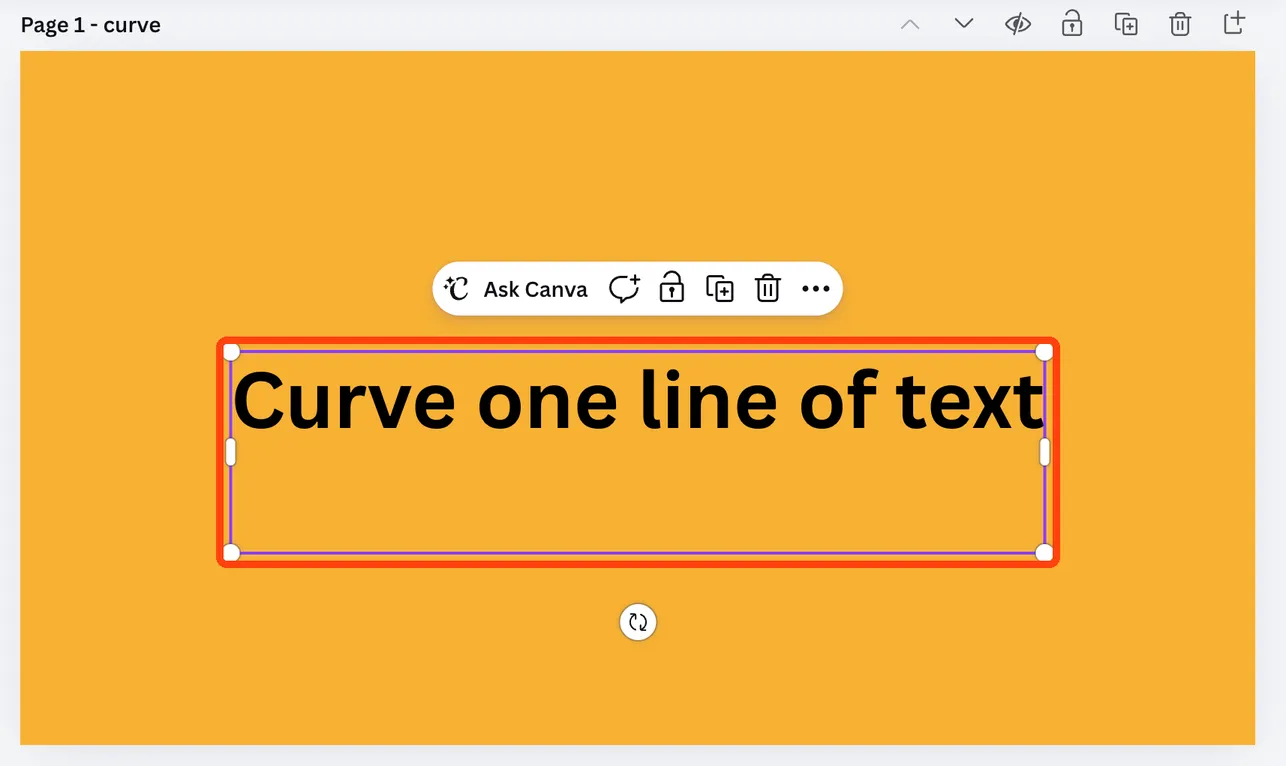
Select the text you want to curve
Open your design and click the text box once, so a frame appears around it. To start fresh, click Text in the side panel and then Add a text box. Keep it to one line: the curve works best on short text, and long sentences wrap into a spiral-like arc that is hard to read.
-
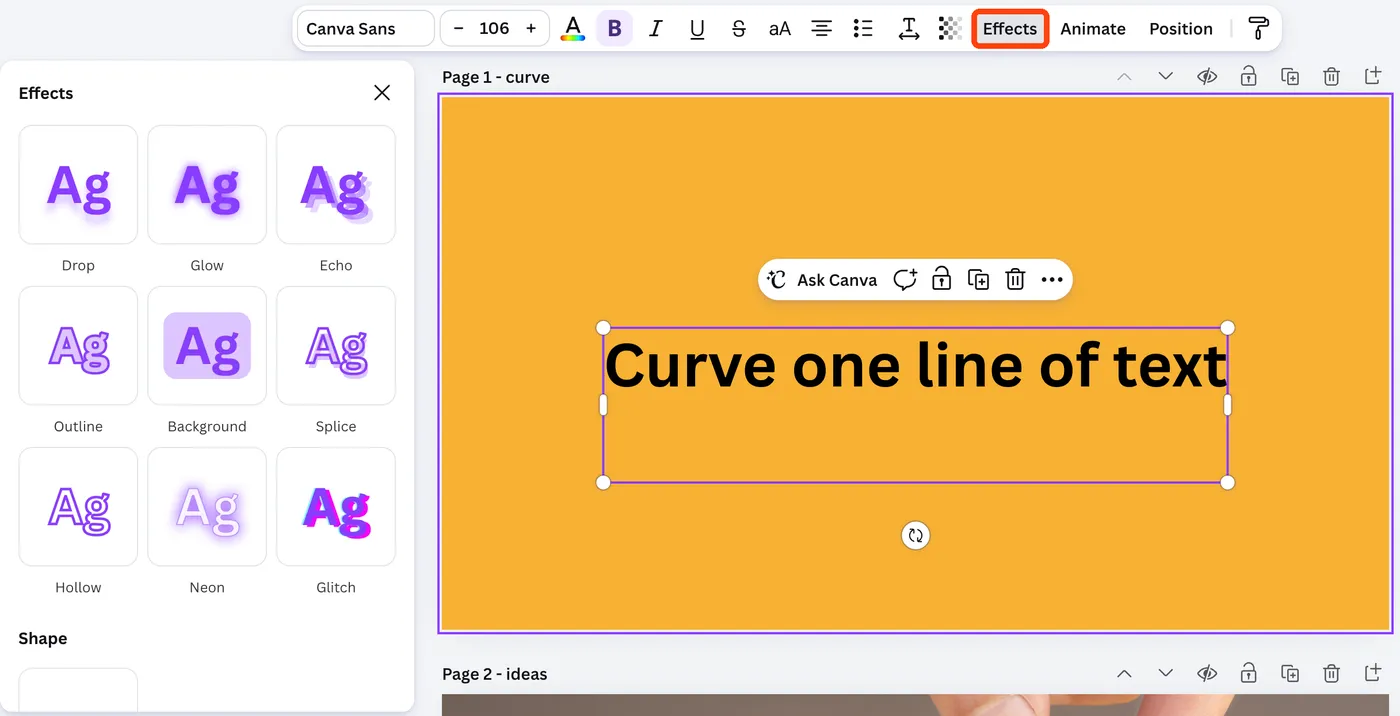
Open Effects and choose Curve
Click Effects in the toolbar above the design. The Effects panel opens on the left. Under Shape, click Curve, and the text bends into an arc straight away. On the phone app, tap the text, swipe along the bottom toolbar to Effects, and tap Curve under Shape.
-
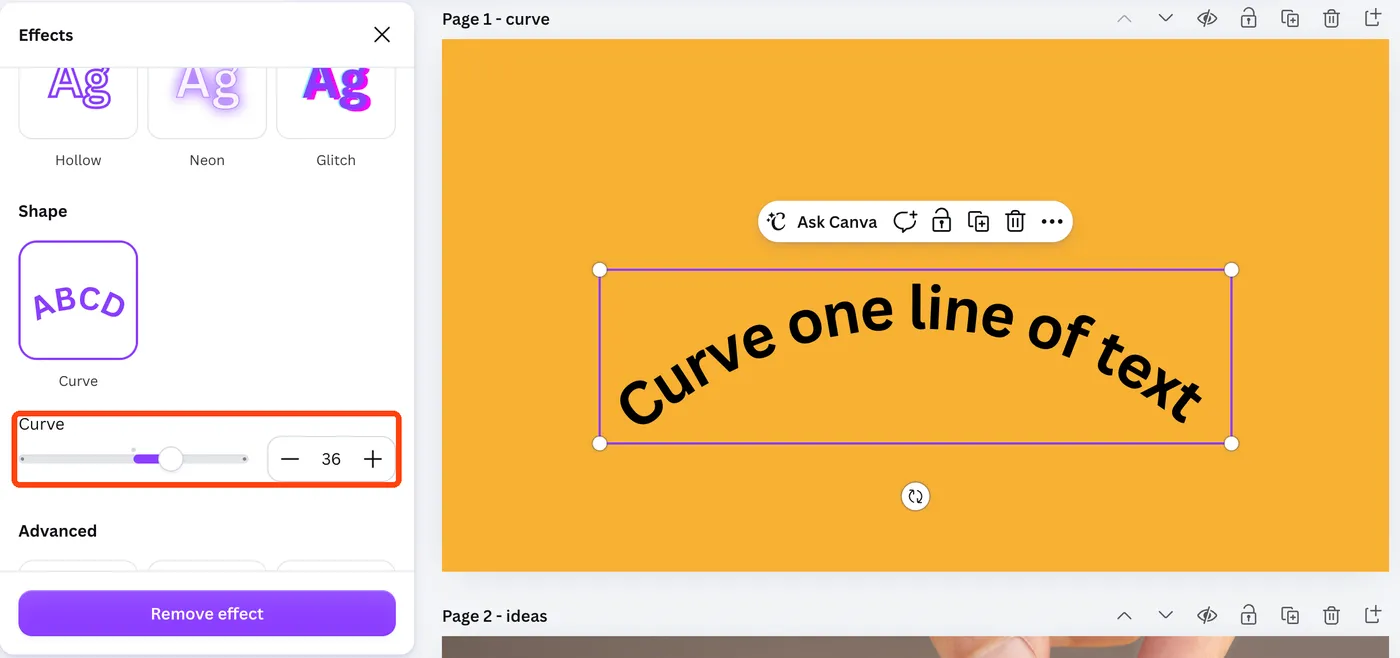
Drag the Curve slider to set the arc
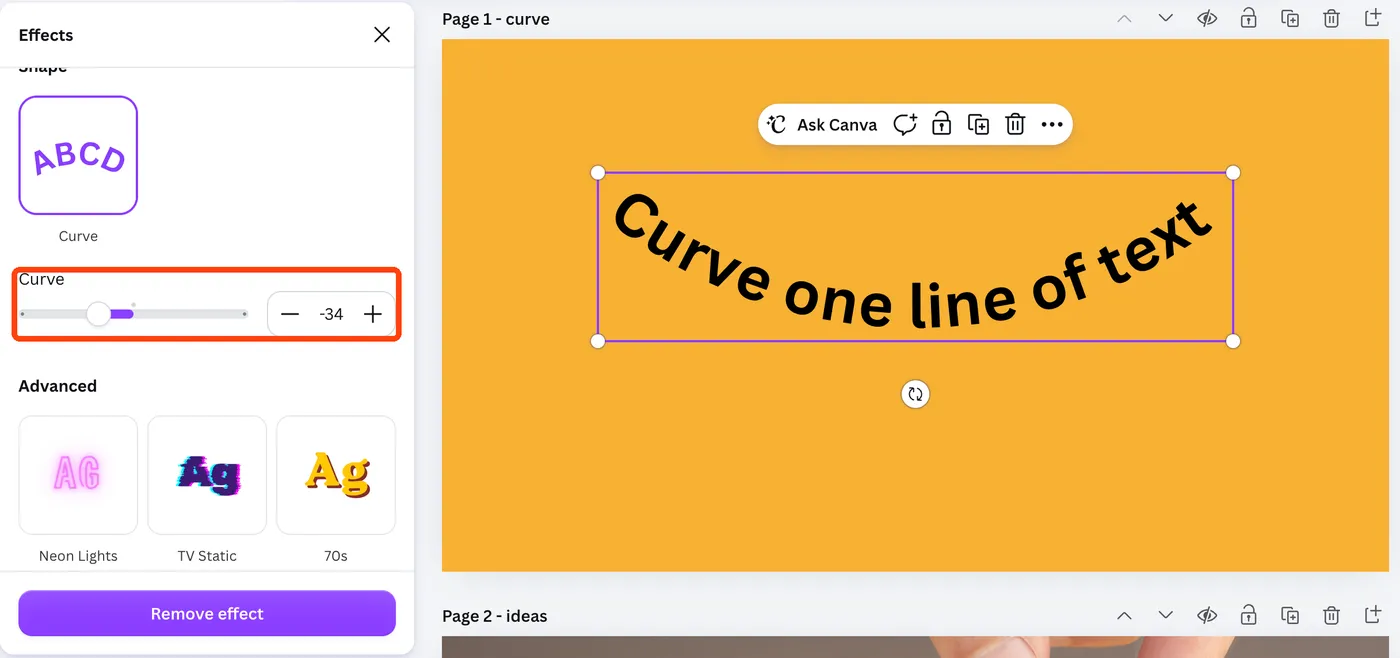
A Curve slider appears under the effect, from -100 to 100. Positive values arch the text upwards, like the top of a circle; negative values bend it downwards, like the bottom of one. The further from 0, the tighter the arc. You can also type a value in the box next to the slider.
-
Resize from a corner, not a side
A curved text box has no side handles, so drag a corner to make it bigger or smaller. To change how much of the circle the text covers, change the font size or the letter spacing instead: longer text closes more of the circle at the same curve value.
-
Wrap text around a circle
Add a circle to use as a guide
Click Elements in the side panel, search for circle, and add a plain circle shape. Drag it to the size you want the text to follow. This is only a guide; you can delete it or keep it as part of the design at the end.
-
Curve the top line with a positive value
Add the text for the top half, apply Curve as in step 2, and set a positive value. Move the text over the top of the circle and adjust the value and the font size until the arc matches the circle’s edge.
-
Curve the bottom line with a negative value
Duplicate the top text box with Ctrl+D (Cmd+D on a Mac), change the words, and set the same value with a minus sign. Move it under the circle. Using the same number for both keeps the two arcs on the same circle, and the bottom line reads left to right, the right way up.
-
Group the pieces so they move together
Hold Shift, click the circle and both text boxes, and click Group in the toolbar. The badge now moves and resizes as one element. To edit a line later, double-click it inside the group.
A common case: a bakery logo needs the shop name around the top of a round badge and the town along the bottom. Steps 1 to 3 curve the name with a positive value, step 7 gives the town the same value with a minus sign, and step 8 locks them to the circle.
Two arcs with mirrored values are what make a circle, because a single curved text box can only bend one way.

More about Canva
Online design tool for social posts, presentations, posters and video.
Curved text in Canva looks wrong? Fixes
- The text does not close into a full circle
Raise the curve value towards 100, then add words, increase the font size or widen the letter spacing. A short word at 100 still covers only part of the circle.
- The bottom text is upside down
It has a positive value. Set a negative value instead (step 7), so the text bends the other way and stays readable.
- The letters bunch up or overlap on a tight curve
Click the Spacing button in the toolbar and increase Letter spacing, or lower the curve value a little.
- I cannot find Curve under Effects
Make sure a text box is selected, not a shape or an image. Curve only appears in the Effects panel for text.
Why Canva bends text along an arc, not a path
Canva’s Curve effect bends a whole text box around the edge of an invisible circle. The slider sets how small that circle is: near 0 it is huge and the text barely bends; at 100 or -100 it is small enough for a sentence to wrap almost all the way round.
There is no way to draw your own path and pin text to it, as you would in Illustrator or Figma. That is why the circle in the steps is built from two arcs rather than one line that runs all the way round.
Pick the curve value first and fit the text to it, by changing the font size and spacing, rather than nudging the slider to fit the text.
What each text shape tool in Canva does
| Tool | What it does | Cost |
|---|---|---|
| Curve effect | Bends one text box into a single arc, up or down | Free |
| Two curved text boxes | Text around the top and bottom of a circle | Free |
| TypeCraft | Warps text into free-form shapes, such as waves | Check your plan |
| Apps from the Canva Apps marketplace | Extra text shapes made by other developers | Varies by app |
Start with the Curve effect. It covers arches, smiles and badges, and the text stays editable.
When the text is in a picture, not a text box
If you uploaded a logo or a screenshot, the words in it are part of the image, and Effects shows image effects instead of Curve. Canva cannot curve text inside a picture. Type the words again in a new text box, curve that, and place it over the image.
Templates sometimes do the same with stylised headings that are images or grouped graphics. Click the text once: if the toolbar shows a font name and size, it is text and can be curved.
How to tell the curve is right
- The text follows the edge of your guide circle with an even gap all the way along.
- Top and bottom lines use the same number, one positive and one negative.
- The bottom line reads left to right and the right way up.
- When you move the group, the circle and both lines move together.
Curved text is two arcs and a group
The Curve effect does one thing: it bends one text box into one arc. Every badge, stamp and round logo in Canva is built from that, with mirrored values and a group to hold it together.
Set the value once, mirror it for the second line, and fit the words with size and spacing. Then style the text as usual: shadows, outlines and other style effects can sit on top of the curve. When the design is finished, download it as a PNG, JPG or PDF from the Share menu.
Curving text in Canva: more questions
- Is curved text free in Canva?
- Yes. The Curve effect is available on Canva Free as well as the paid plans.
- Can you curve text in the Canva app?
- Yes. Tap the text, swipe along the bottom toolbar to Effects, and tap Curve under Shape.
- How do you make text go all the way around a circle in Canva?
- Use two text boxes: one with a positive curve value for the top half and one with the same negative value for the bottom half, both placed around a circle shape.
- Can you curve text into a wave in Canva?
- Not with the Curve effect, which makes a single arc. For waves and warped shapes, use TypeCraft or a text app from the Canva Apps marketplace.
Share this guide
Link copied
Was this guide helpful?
What was missing?
Thanks, that helps us.
Test log
Followed the steps? Tell us how it went on your device. Entries appear here after we check them.
- Worked Every step, start to finish · Elias Brandt and Daniel Okonkwo Team
I tested this
Steps performed and confirmed 17 days ago
When you need this
If you want the words on a logo, badge or sticker to follow a curve instead of a straight line, use Canva’s built-in Curve effect, free on every plan. It bends one text box into one arc, so a full circle takes two boxes and a little assembly.
- Describes
- Canva in a web browser · Canva app for iPhone and Android
- Takes
- One minute for an arc; five for a full circle
- Platforms
- Web · macOS · Windows · iOS · Android
- Published
- 5 October 2026
- Facts checked
- 5 October 2026
Steps repeated and verified by  Elias Brandt and
  Daniel Okonkwo
on
Daniel Okonkwo
on
- Elias Brandt: the Windows and web steps on a ThinkPad X1 Carbon (Windows 11 Pro).
- Daniel Okonkwo: the Mac steps on a MacBook Pro (macOS 27.0.1), the iPhone steps on an iPhone 15 (iOS 27.0.1) and the Android steps on a Pixel 9 Pro (Android 17).
 Canva
Canva