 Canva guide

Marta Kowalczyk writes about design and creative apps for Appcyclopedia, working on a MacBook Air, an iPhone 16 Pro and a Galaxy A55.
- Web
- Windows
- macOS
- iOS
- Android
Short answer
Open the design in Canva, click Share at the top right, then Download. Choose a File type, such as PNG, JPG or PDF, select the pages you want, and click Download. The file saves to your computer or phone.
For anything printed, choose PDF: it keeps the layout and quality a printer needs, while PNG and JPG suit screens.
Below: the steps, which format to pick for each use, and the options that need Canva Pro.
Download your Canva design in the right format
To download a Canva design, everything happens in the Share menu. The steps below cover choosing a format and the pages, then the download itself.
-
Open the download options
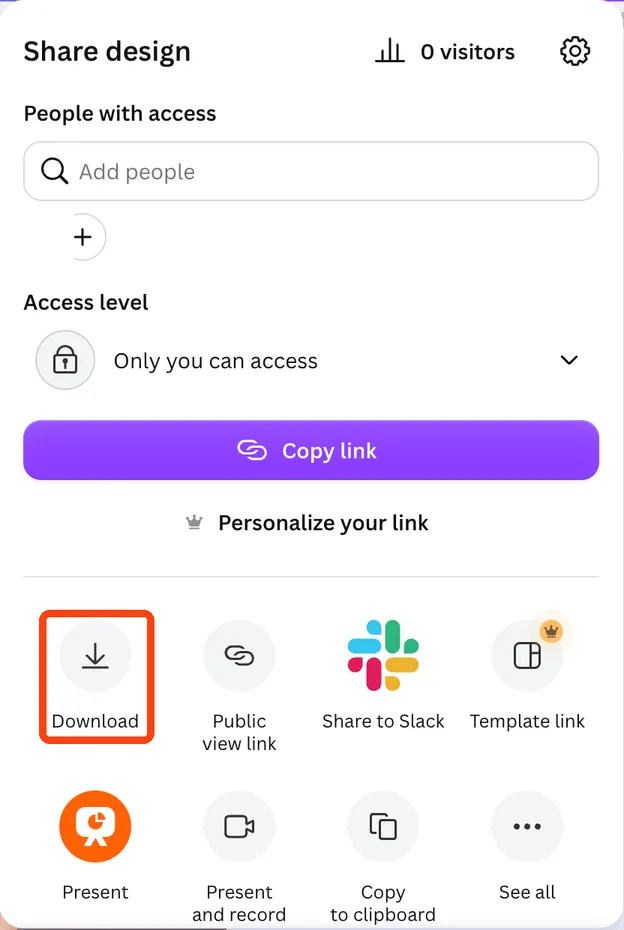
Click Share, then Download
Open the design in Canva. Click Share at the top right of the editor, then Download in the menu that opens. On a phone, tap the share or download icon at the top of the screen.
-
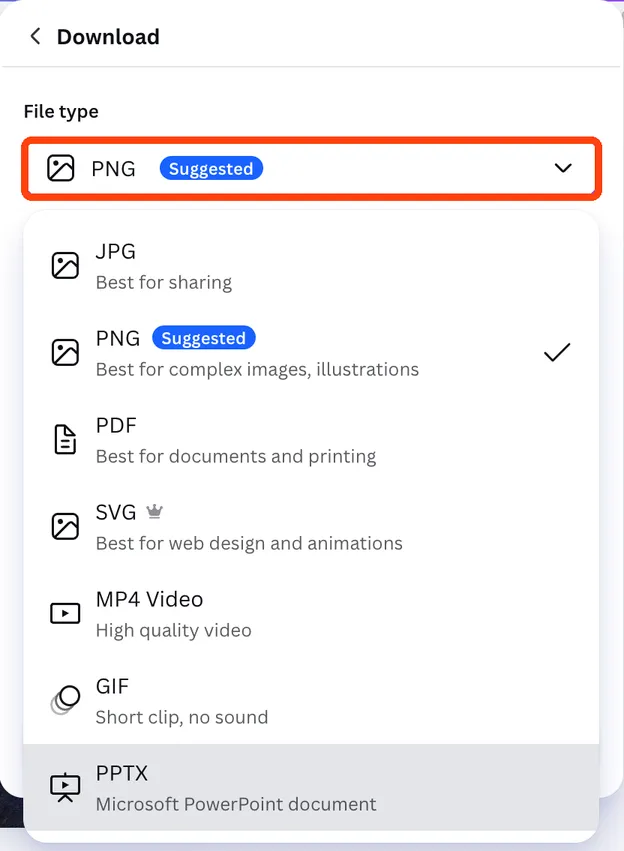
Choose the file type
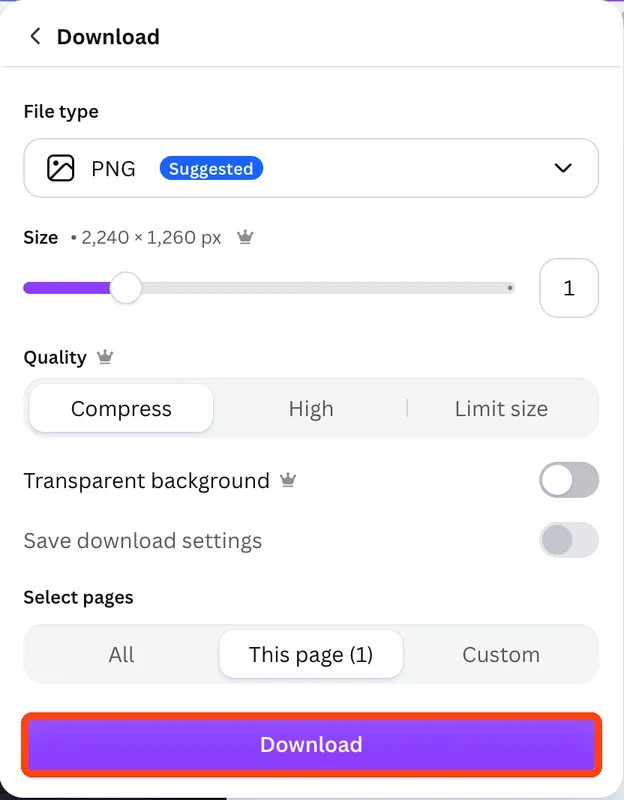
Open the File type list and pick a format: PNG for sharp images and text on screens, JPG for photos with a smaller file, or PDF for documents to email and anything you will print. Canva shows a single PDF option in this list.
-
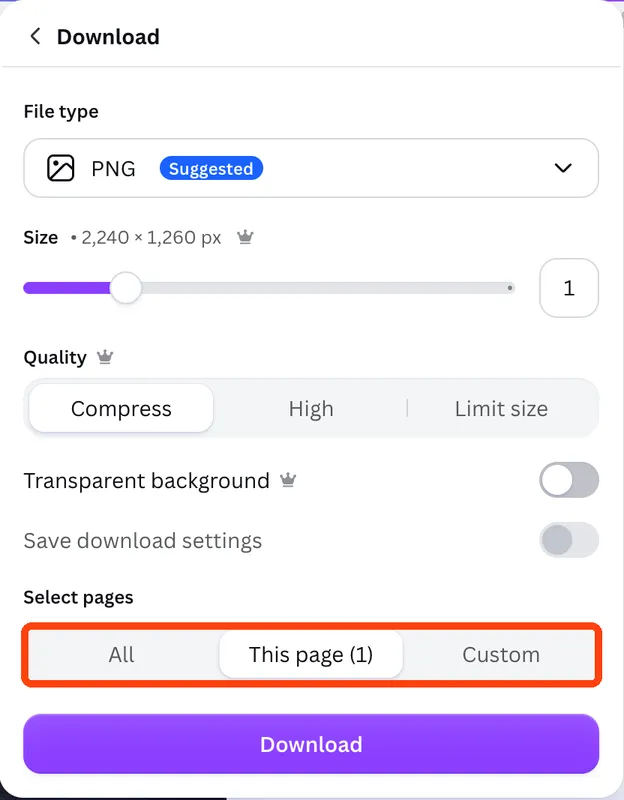
Select the pages
For a design with several pages, use Select pages to choose all pages or only some. Images download one file per page; a PDF keeps the pages together in one file.
-
Download it
Click Download and find the file
Click Download. Canva prepares the file and saves it to your Downloads folder on a computer. Several image pages arrive as a single zip file. On a phone, the file saves to your photos or files.
A party invitation is a good example: a PDF for the printed cards, and a PNG of the first page to send in a group chat.
Download once for each use; one file rarely suits both paper and a phone screen.

More about Canva
Online design tool for social posts, presentations, posters and video.
Download problems and quick fixes
- The printed copy looks blurry
The design was downloaded as a PNG or JPG, which suit screens. Download it again as PDF and send that file to the printer.
- The transparent background option is greyed out
A transparent background on PNG downloads is a Canva Pro feature. On a free account, the background downloads as it appears in the design.
- You got a zip file instead of an image
You downloaded several pages as images, so Canva bundled them. Open the zip to get each page, or select one page before downloading.
Which format to pick
Canva offers several formats, and the right one depends on where the file is going.
| You want to | Choose | Why |
|---|---|---|
| Post on social media or send in a chat | PNG | Sharp text and graphics on screens |
| Share a photo-heavy design with a small file | JPG | Smaller files for photographs |
| Email a document, flyer or CV | Opens anywhere, keeps the layout | |
| Print at home or at a print shop | Keeps the quality for paper |
When in doubt, PNG for screens and PDF for paper. The other formats are for special cases.
What needs Canva Pro
Most downloads work the same on the free plan. A few options are part of Canva Pro:
- Transparent background on PNG files, useful for logos placed on other images
- Resizing on download, to make the file larger or smaller than the design
- SVG files, used by web designers and for cutting machines
On the free plan, a design with a plain white background is the closest substitute.
One design, several downloads
You can download the same design as many times as you like, in different formats. Canva keeps the design itself unchanged, so a PDF for the printer and a PNG for social media come from the same file.
Your design is ready to use
Downloading is quick. Choosing the format for the job is what makes the result look right.
Pick PNG for screens, PDF for paper, and download each version you need from the Share menu. If the design still needs work, curving text in Canva is a common next touch.
Downloading from Canva, common questions
- Can I download Canva designs for free?
- Yes. PNG, JPG and PDF downloads are available on the free plan. Some options, such as a transparent background, need Canva Pro.
- Which format is best for Instagram or WhatsApp?
- PNG for designs with text or graphics, JPG for photo-heavy designs. Both look sharp on a phone screen.
- Which format should I send to a print shop?
- PDF. It keeps the quality and colour detail that printing needs, which screen formats leave out.
Share this guide
Link copied
Was this guide helpful?
What was missing?
Thanks, that helps us.
Test log
Followed the steps? Tell us how it went on your device. Entries appear here after we check them.
- Worked Every step, start to finish · Elias Brandt and Daniel Okonkwo Team
I tested this
Steps performed and confirmed 14 days ago
2 changes since publishing
Correction: Canva now has a single PDF option, so the guide recommends PDF for email and print.
Before: The guide told readers to choose PDF Standard for documents to email and PDF Print for anything printed.
Now: Canva’s File type list now shows a single PDF option, so the guide recommends PDF for both email and print. The steps also have screenshots of the Share menu and the Download panel.
Update: The source now links Canva’s current download article.
Before: The sources linked Canva Help Center, Download your designs, at an address we could not confirm.
Now: The source now links Canva’s current article on the same topic, Download or save designs to your device. The steps in the guide are unchanged.
When you need this
To print, email or upload a finished Canva design such as a poster, an invitation or a social post, download it as a PNG, JPG or PDF file. The right format depends on where the design is going.
- Describes
- Canva in a browser and the desktop app · Canva app for iPhone and Android
- Takes
- Under a minute
- Platforms
- Web · Windows · macOS · iOS · Android
- Published
- 11 October 2026
- Facts checked
- 7 October 2026
Steps repeated and verified by  Elias Brandt and
  Daniel Okonkwo
on
Daniel Okonkwo
on
- Elias Brandt: the Windows and web steps on a ThinkPad X1 Carbon (Windows 11 Pro) and the Android steps on a Galaxy S25 (Android 17).
- Daniel Okonkwo: the Mac steps on a MacBook Pro (macOS 27.0.1) and the iPhone steps on an iPhone 15 (iOS 27.0.1).
Limits quoted here come from Canva’s documentation and were not tested.
Source: Canva Help Center, Download or save designs to your device
 Canva
Canva