 Gmail guide

Marta Kowalczyk writes about design and creative apps for Appcyclopedia, working on a MacBook Air, an iPhone 16 Pro and a Galaxy A55.
- Web
- Android
- iOS
Short answer
On a computer, open Gmail, click the gear icon, then See all settings. On the General tab, scroll to Signature, select Create new, type it, choose it under Signature defaults, and click Save Changes at the bottom of the page.
Phones are separate: the Gmail app on Android and iPhone uses its own Mobile signature when you set one. Without it, mail from the app carries the signature you made on the computer.
Below: the steps for each device, which signature appears where, and why a signature with a logo can stop saving.
Where to set up a Gmail signature on each device
To add a signature in Gmail, start on a computer: that signature is the one most of your mail uses, and it is the only place you can add images and formatting. The phone apps come after, as a plain-text override.
-
On a computer
Open the full Gmail settings
Open Gmail in a browser and click the gear icon at the top right. A quick settings panel slides out. Select See all settings at the top of it. The full settings page opens on the General tab.
-
Create the signature and type it
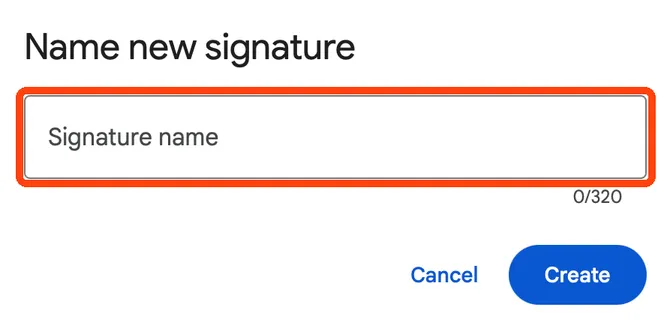
Scroll about two thirds of the way down the General tab to Signature. Select Create new, give the signature a name only you will see, such as “Work”, and type it in the box. The toolbar above the box adds bold, links and images. You have up to 10,000 characters, and an image counts towards that limit.
-
Choose when Gmail adds it
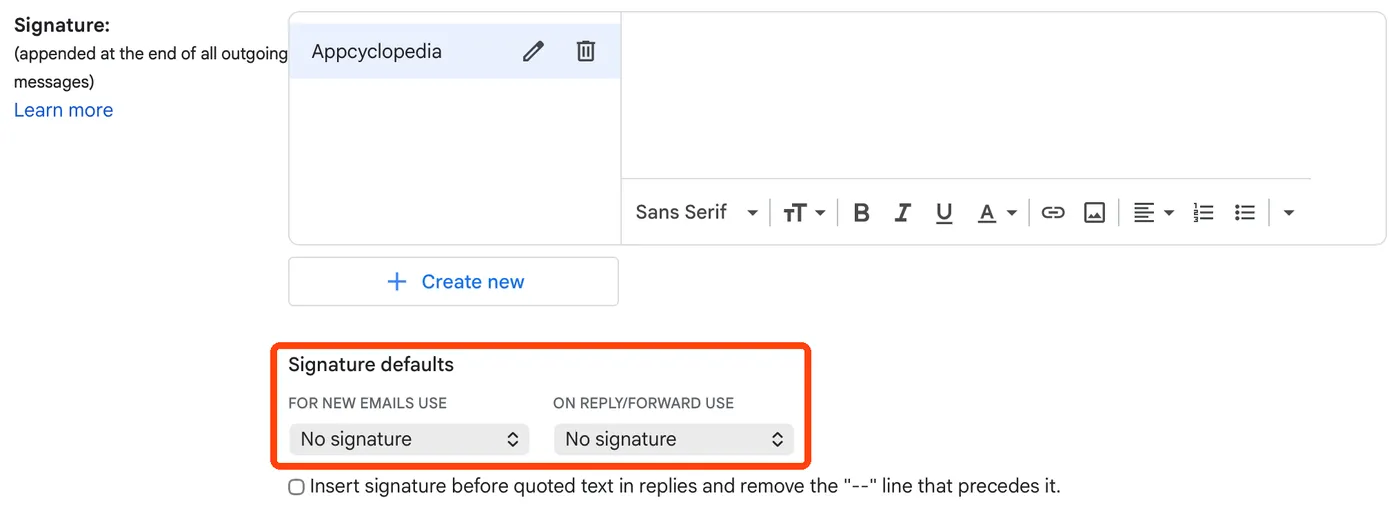
Under Signature defaults, set the signature for For new emails use and for On reply/forward use. You can pick the same one for both, or a shorter signature for replies. Leave either on No signature to skip it there.
-
Save the changes at the bottom of the page
Scroll to the very bottom and click Save Changes. Nothing you did in the last three steps is kept until you do, and leaving the page throws it away. Gmail returns to the inbox. Click Compose to see the signature in a new message.
-
In the Gmail app on Android
Add a mobile signature on Android
Open the Gmail app and tap Menu at the top left. Scroll down, tap Settings, then the account you want. Tap Mobile signature, type the text, and tap OK. It applies only to mail sent from the app on this phone.
-
In the Gmail app on iPhone and iPad
Add a mobile signature on iPhone or iPad
Open the Gmail app, tap Menu at the top left, then Settings. Under Compose and reply, tap Signature settings, turn on Mobile Signature, and type the text. Tap Back to save. With several accounts in the app, repeat this for each one.
A typical result: your computer signature has your name, job title, phone number and a small logo, and the phone app signs off with a single line, such as your name and “Sent from my phone”.
Set the full signature once on the computer, then decide whether the phone needs anything shorter.

More about Gmail
Google’s free email service, included with every Google Account.
Signature not showing up? Check these first
- The signature disappeared after you left the settings page
It was never saved. Go back to See all settings, set it up again, and click Save Changes at the very bottom of the General tab before leaving.
- Gmail will not save a signature with a logo
The signature is over the 10,000-character limit, and an image counts towards it. Use a smaller image, or remove it and check that the text alone saves.
- Mail from your phone shows a different signature
The app has its own Mobile signature, and it overrides the computer one. Clear it in the app’s settings to fall back to the computer signature.
- New messages have the signature but replies do not
On reply/forward use is set to No signature. Change it under Signature defaults and save. While writing, you can also click Insert signature at the bottom of the message to add one by hand.
Which signature Gmail adds, and where
Gmail keeps up to three kinds of signature, and the one a message gets depends on where you sent it from.
| Sent from | Signature used | Can include images? |
|---|---|---|
| Gmail in a browser | The default you chose under Signature defaults | Yes |
| Gmail app, mobile signature set | The app’s Mobile signature | No, plain text |
| Gmail app, no mobile signature | The computer signature | Yes, as set on the computer |
| A Send mail as address | The signature linked to that address | Yes |
The fallback in the third row is the one people miss. If you never touch the app’s settings, your full computer signature, logo included, goes out from your phone as well. That is usually what you want, and it means the mobile step is optional.
Why a signature with a logo stops saving
A Gmail signature can hold 10,000 characters, which sounds like plenty for a name and a phone number. An image is the exception, because it counts towards the same limit.
A logo can use far more of that budget than the text around it. When Gmail refuses to save, the image is the first thing to shrink or replace. Removing it and saving the text alone tells you quickly whether the image was the problem.
Keep signature images small, and add them with the image button in the signature toolbar.
Different signatures for new mail and replies
A full signature on every reply in a long thread repeats your phone number and logo a dozen times. The Signature defaults setting fixes this by splitting the two cases.
- Create a full signature for new emails.
- Create a short one, such as your first name, for replies.
- Set each under For new emails use and On reply/forward use, then click Save Changes.
If you also send from another address with Send mail as, the drop-down above the signature box lets each address have its own.
How to check your Gmail signature works
Two test messages to yourself show whether both defaults are set the way you meant.
- Click Compose. The signature for new emails should already sit at the bottom of the empty message. Send it to your own address.
- Open that message and click Reply. The reply signature, or none if you chose No signature, appears below your cursor.
- If you set a mobile signature, send one message from the Gmail app on your phone and check which signature it carries.
Create it on a computer, run these two tests, then leave it alone. If you are still setting up the address itself, the guide to creating a Gmail account comes first. Once you are sending regularly, scheduling and unsending in Gmail gives you a few seconds to catch a mistake before it leaves.
More Gmail signature questions
- Can I have more than one signature in Gmail?
- Yes. Create several on a computer, choose defaults for new mail and replies, and switch while writing with Insert signature at the bottom of the message window.
- Can I add a picture or logo to my Gmail signature?
- Yes, on a computer. Use the image button in the signature toolbar. The phone apps only support a plain-text mobile signature.
- Does my computer signature appear on mail I send from my phone?
- It does when the app has no mobile signature. Once you set a mobile signature in the app, it replaces the computer one for mail sent from that phone.
- Can I use a different signature for each address I send from?
- Yes. If you use Send mail as for other addresses, a drop-down above the signature box lets you pick a signature for each address.
Share this guide
Link copied
Was this guide helpful?
What was missing?
Thanks, that helps us.
Test log
Followed the steps? Tell us how it went on your device. Entries appear here after we check them.
- Worked Every step, start to finish · Daniel Okonkwo and Elias Brandt Team
I tested this
Steps performed and confirmed 16 days ago
Changed since publishing
Correction: Corrected the test record to name who performed the steps, with each tester’s platform and device.
Before: Steps performed by Elias Brandt, on the web, in the Gmail phone app and for a Send mail as address.
Now: Steps performed by Daniel Okonkwo and Elias Brandt. The earlier record named only Elias. Daniel ran the iPhone steps on an iPhone 15; Elias ran the Android and web steps. Each tester is now listed with the platform and device they used.
When you need this
If you want your name, phone number or job title added to the bottom of every email without typing it each time, set up a signature in Gmail. It is worth doing before you send your first emails from a new address.
- Describes
- Gmail on the web in a desktop browser · Gmail app for Android and for iPhone and iPad
- Takes
- Four minutes on a computer, one more for each phone
- Platforms
- Web · Android · iOS
- Published
- 6 October 2026
- Facts checked
- 6 October 2026
Steps repeated and verified by  Daniel Okonkwo and
  Elias Brandt
on
Elias Brandt
on
- Daniel Okonkwo: the iPhone steps on an iPhone 15 (iOS 27.0.1).
- Elias Brandt: the Android steps on a Galaxy S25 (Android 17) and the web steps on a ThinkPad X1 Carbon (Windows 11 Pro).
- The 10,000-character limit comes from Google’s documentation and was not tested.

 Gmail
Gmail