 Gmail guide

Daniel Okonkwo writes about phones and mobile apps for Appcyclopedia, working on a MacBook Pro, a Pixel 9 Pro and an iPhone 15.
- Web
- Android
- iOS
Short answer
In Gmail, click Compose, then the paperclip icon at the bottom of the message window, and pick the file. On a phone, tap the paperclip at the top of the new message. You can also drag a file straight into the message on a computer.
The size limit: attachments can total 25 MB per email. Anything larger is uploaded to Google Drive and sent as a link instead.
Below: the steps on a computer and a phone, sending large files, and why Gmail refuses some files.
Add a file to a Gmail message
To attach a file in Gmail, use the paperclip in the message window. The first group covers a computer, where you can also drag files in; the second covers the phone app.
-
On a computer
Click Compose and write the message
Open Gmail and click Compose at the top left. A new message window opens at the bottom right. Add the recipient and subject as usual.
-
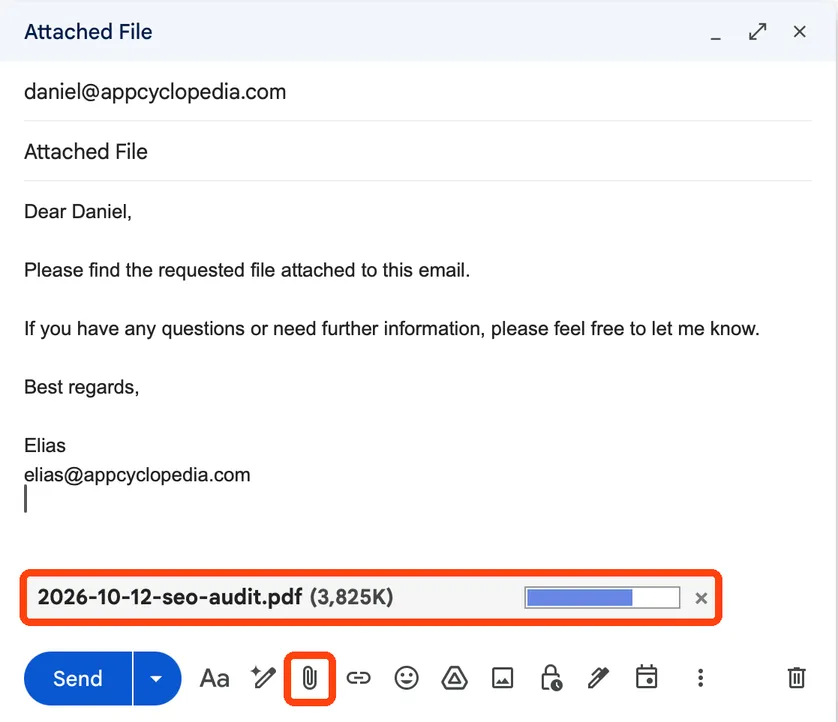
Click the paperclip and choose the file
At the bottom of the message window, click the paperclip icon, Attach files. Pick one or more files and click Open. Each file appears under the message with its size while it uploads.
-
Or drag the file into the message
Drag a file from your desktop or a folder onto the message window and drop it. Images may land inside the message text; use the paperclip if you want them sent as separate files.
-
In the Gmail app
Tap the paperclip at the top of a new message
In the Gmail app, tap Compose, then the paperclip at the top of the screen. Choose Attach file and pick the file from your phone, or insert one from Google Drive.
-
For large files
Send anything over 25 MB as a Drive link
If the attachments add up to more than 25 MB, Gmail removes them and puts a Google Drive link in the email instead. Check that the link is shared with the people you are sending to, or they will see an access request rather than the file. To send a file that is already in Drive, click the Drive icon, Insert files using Drive, in the same toolbar.
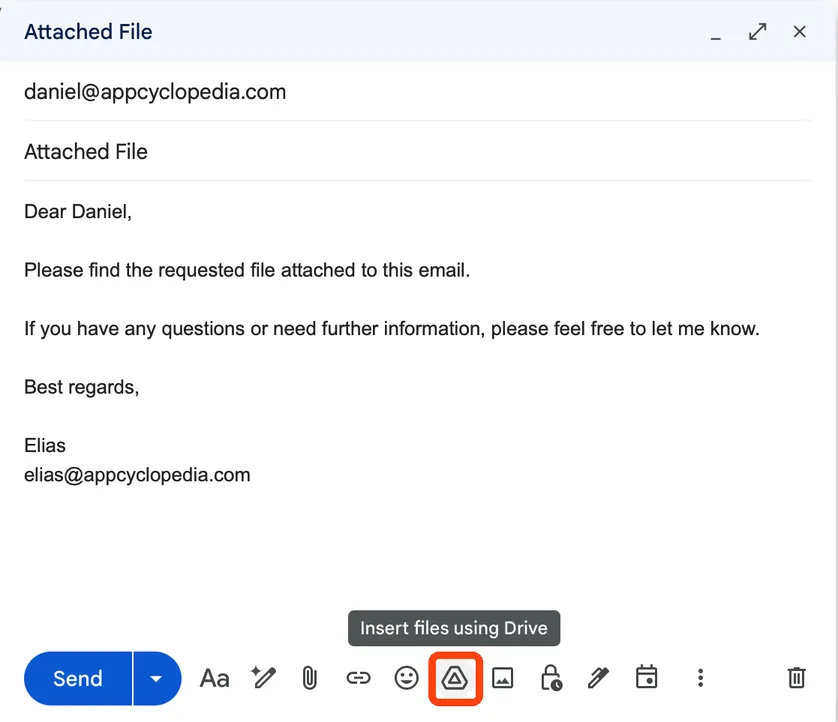
A typical case: a CV as a PDF and a portfolio of photos. The PDF goes as an attachment; the photos, at 60 MB together, go as a Google Drive link that Gmail adds for you.
Keep attachments for single documents and use a Drive link for anything large or in many parts.

More about Gmail
Google’s free email service, included with every Google Account.
When Gmail will not attach the file
- Gmail says the file type is blocked
Gmail blocks some file types for security, such as programs ending in .exe, even inside a zip file. Upload the file to Google Drive and send a link instead.
- The recipient cannot open the Drive link
The file is not shared with them. Open it in Drive, click Share, and add their email address or change access to Anyone with the link.
- The upload stops partway
Large files need a stable connection. Wait until every attachment shows as finished before you click Send, or upload the file to Drive first and attach it from there.
Attachment or Drive link?
Gmail chooses for you once you pass 25 MB, but it is worth choosing on purpose.
| Send as | Best for | What the recipient gets |
|---|---|---|
| Attachment | Documents, PDFs and a few photos under 25 MB | A copy of the file in their inbox |
| Google Drive link | Large files, videos and folders | A link to the file in your Drive |
An attachment is a copy: once sent, you cannot change or withdraw it. A Drive link points to your file, so you can update it, and you can remove access later by changing its sharing.
Send a link when the file is large or you may need to take it back.
Why some files bounce
Gmail blocks file types that are often used to spread viruses. Programs, scripts and some compressed files are refused, and renaming the file does not get it through.
The reliable route for these is Google Drive. Upload the file there, share it with the recipient, and send the link. The Drive upload guide covers each way to get it there.
Attachments use your storage
Every attachment you send or receive stays in your Gmail and counts towards your Google storage, which is shared with Drive and Photos. Sent mail with large attachments is one of the quickest ways to fill it.
To find the largest ones, search Gmail for has:attachment larger:10M.
The file is on its way
Attaching takes a click. The decisions that matter are the size, the file type, and whether a link would serve the recipient better.
Use the paperclip for small files, let Drive handle the big ones, and check the sharing on any link before you send.
Attaching files in Gmail
- What is the maximum attachment size in Gmail?
- 25 MB in total per email for a personal account. Larger files are sent as a Google Drive link instead of an attachment.
- Can I attach several files at once?
- Yes. Select several files in the file picker, or drag them all into the message together. They count towards the 25 MB limit as a total.
- Does a Drive link use the recipient’s storage?
- No. The file stays in your Google Drive and uses your storage. The recipient only opens or downloads it.
Share this guide
Link copied
Was this guide helpful?
What was missing?
Thanks, that helps us.
Test log
Followed the steps? Tell us how it went on your device. Entries appear here after we check them.
- Worked Every step, start to finish · Daniel Okonkwo and Elias Brandt Team
I tested this
Steps performed and confirmed 14 days ago
Changed since publishing
Correction: Corrected the test record to name who performed the steps, with each tester’s platform and device.
Before: Steps performed by Elias Brandt. Elias performed the steps in this guide.
Now: Steps performed by Daniel Okonkwo and Elias Brandt. The earlier record named only Elias. Daniel ran the iPhone steps on an iPhone 15; Elias ran the Android and web steps. Each tester is now listed with the platform and device they used.
When you need this
To send someone a document, a photo or a PDF by email, attach it to the message in Gmail. A file over 25 MB goes as a Google Drive link instead.
- Describes
- Gmail in a desktop browser · Gmail app for Android and iPhone
- Takes
- Under a minute, plus upload time
- Platforms
- Web · Android · iOS
- Published
- 9 October 2026
- Facts checked
- 7 October 2026
Steps repeated and verified by  Daniel Okonkwo and
  Elias Brandt
on
Elias Brandt
on
- Daniel Okonkwo: the iPhone steps on an iPhone 15 (iOS 27.0.1).
- Elias Brandt: the Android steps on a Galaxy S25 (Android 17) and the web steps on a ThinkPad X1 Carbon (Windows 11 Pro).
Limits quoted here come from Gmail’s documentation and were not tested.
Part of How to share files and invite people .

 Gmail
Gmail